Online Client Portal: Setting Up Your Account
Overview
Welcome to your Online Client Portal, where you will be able to see your loan terms, payment history, billing statements, amortization schedule, payoff amount, and more. If there is more than one borrower on your loan, each of you can follow these steps to get access individually.
Registering Your Online Client Portal Account
There are three ways to register for an account:
- Register from your billing statement.
- Register in-person or over the phone.
- Register from your lender's online portal site
1. Register from your billing statement:
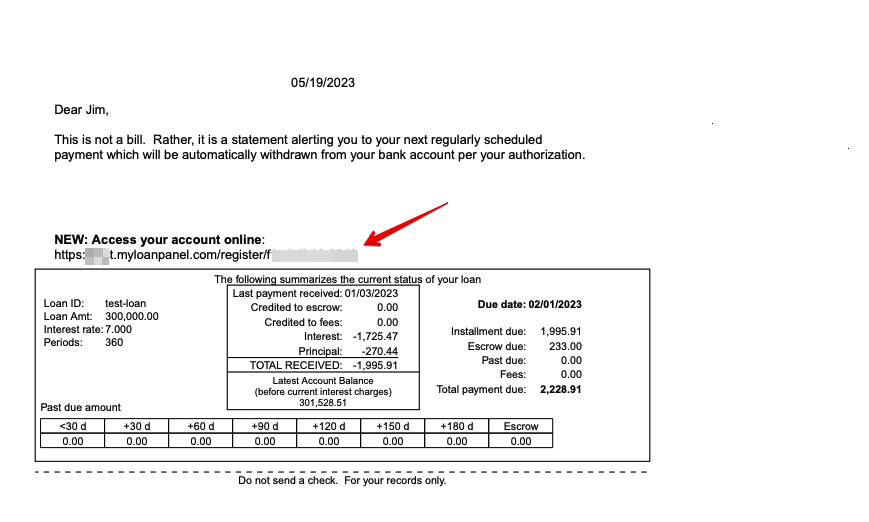
Check your most recent billing statement for a registration website. You can find the url at the top of the statement, above the box with your loan information (example below). This link is individual to your loan.
Create your Online Portal Credentials
-
Go to the website on your billing statement to sign up. At the top, you will see your loan identifier number. Make sure it matches the number you see on your statement.
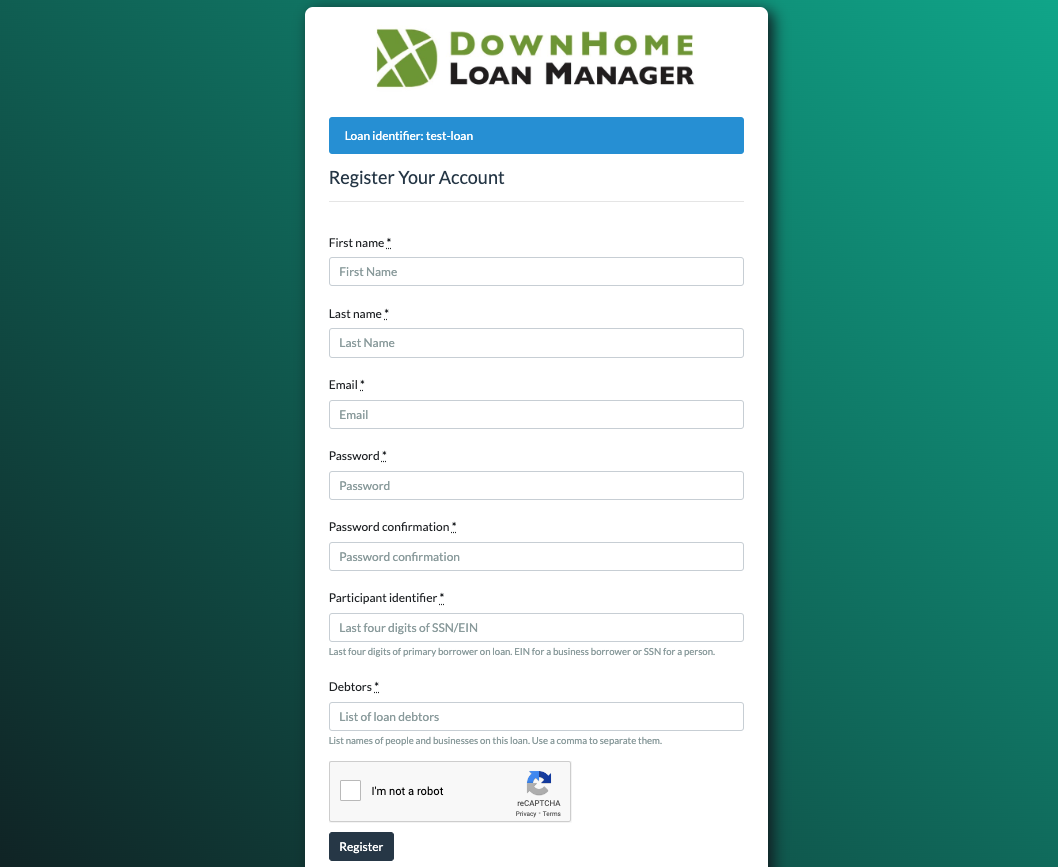
- Enter your name, email address, and set your password. Your password needs to be a minimum of 8 characters with mixed upper and lower case, at least one number, and at least one special character.
-
You will also be asked for the last four digits of your SSN or EIN, and the names of any other debtors on your loan.
Note: Your lender will use this information to confirm your identity.
- Click to confirm the "I'm not a robot" CAPTCHA, follow the instructions that may pop up, and then click Register.
- On the next screen, click the Log in button and log in using the credentials you just created.
2. Register in-person or over the phone:
If your lender offers online account access, but you don't see the website listed on your statement, or you'd like assistance setting up your account, you can contact your lender directly.
Once your lender has set up an account for you, you will receive an email. The process will then be similar to the above, with some of your information already populated in the form. You will still need to set a password—the password must be a minimum of 8 characters with mixed upper and lower case, at least one number, and at least one special character.
3. Register from your lender's online portal site
Note: For this process, you'll need your loan identifier—if you can't find it on your loan documents, please contact your lender for assistance.
Navigate to your lender's online portal site and click the Sign Up button.
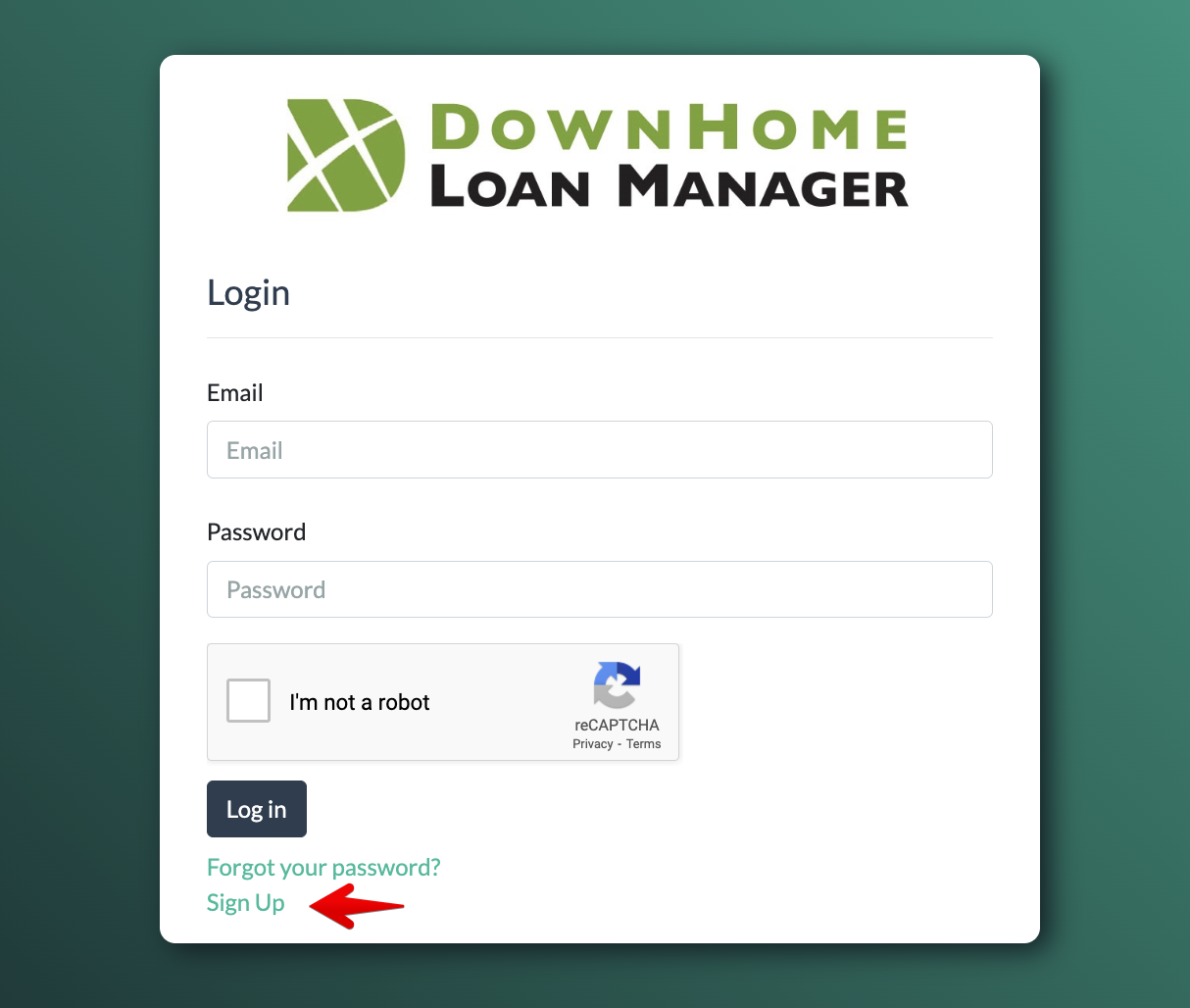
On the next screen, fill out the form to create your login. You will use the details from your loan documents.
Once you submit your information, your lender will need to manually confirm and approve your account. You will receive an email to let you know when this process has been completed and you are approved.
Navigating your Online Portal
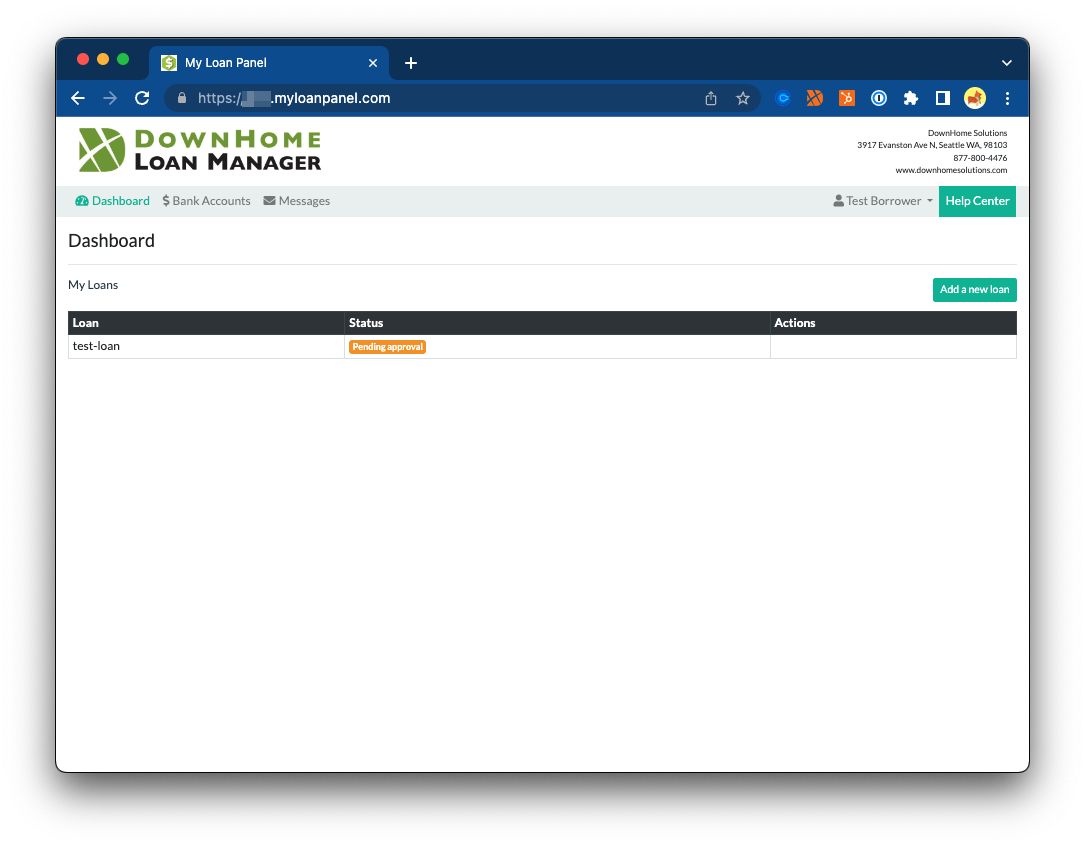
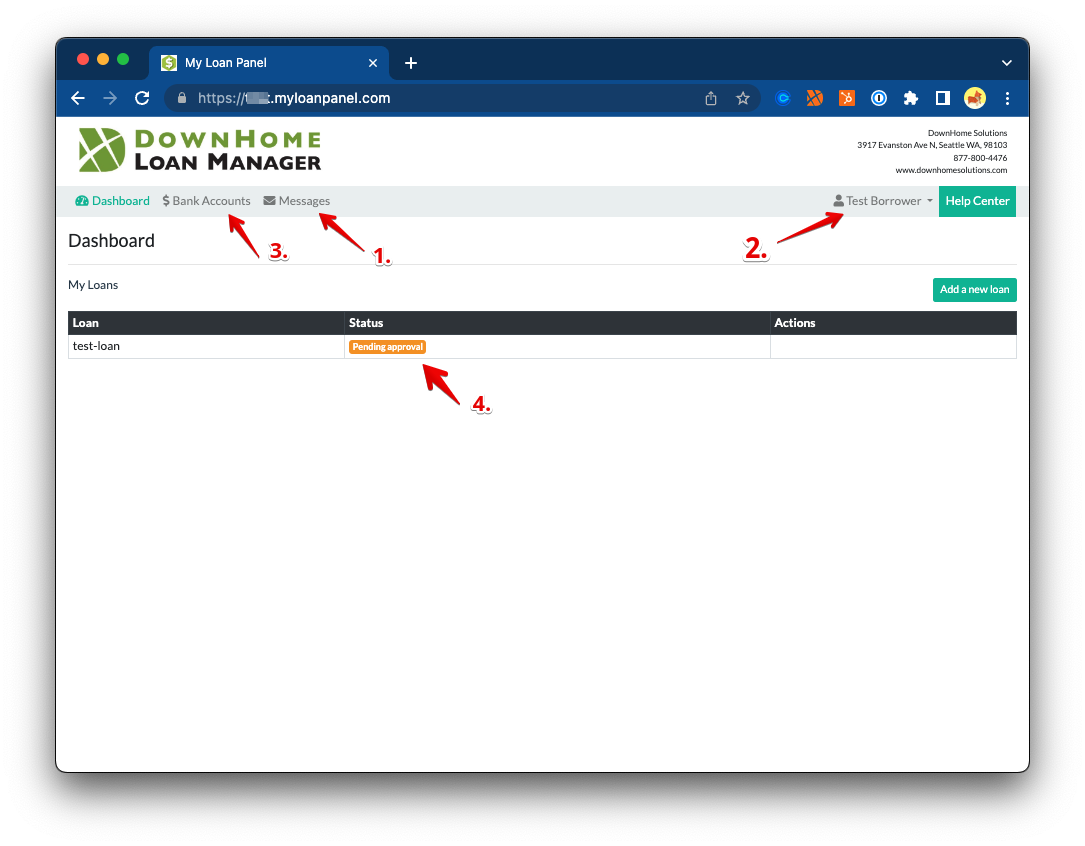
While waiting for loan access from your lender, you will be able to log in, message with your lender, and update your contact information.
- To message securely with your lender, go to the Messages tab.
- To update your contact information, click on your name in the top right and click on Profile. Note: If you change your email address on the Profile page, you will receive an email asking you to confirm the change. The new email address will be your new login username.
- If your lender has enabled payments on your account, you can begin to set up your bank accounts. See our article for more information: How to Connect a Bank Account.
-
While waiting for your account to be approved by your lender, your loan status will be listed as "Pending approval". This simply means that the system is waiting for your lender to confirm that you have a loan with them (it doesn’t affect the status of your loan). You will receive a second automated email from info@downhomesolutions.com when your lender has made a decision about your online access - Approved, Denied, or Need More Information.
Once you’ve been approved, your screen will update to show you access to your loan.
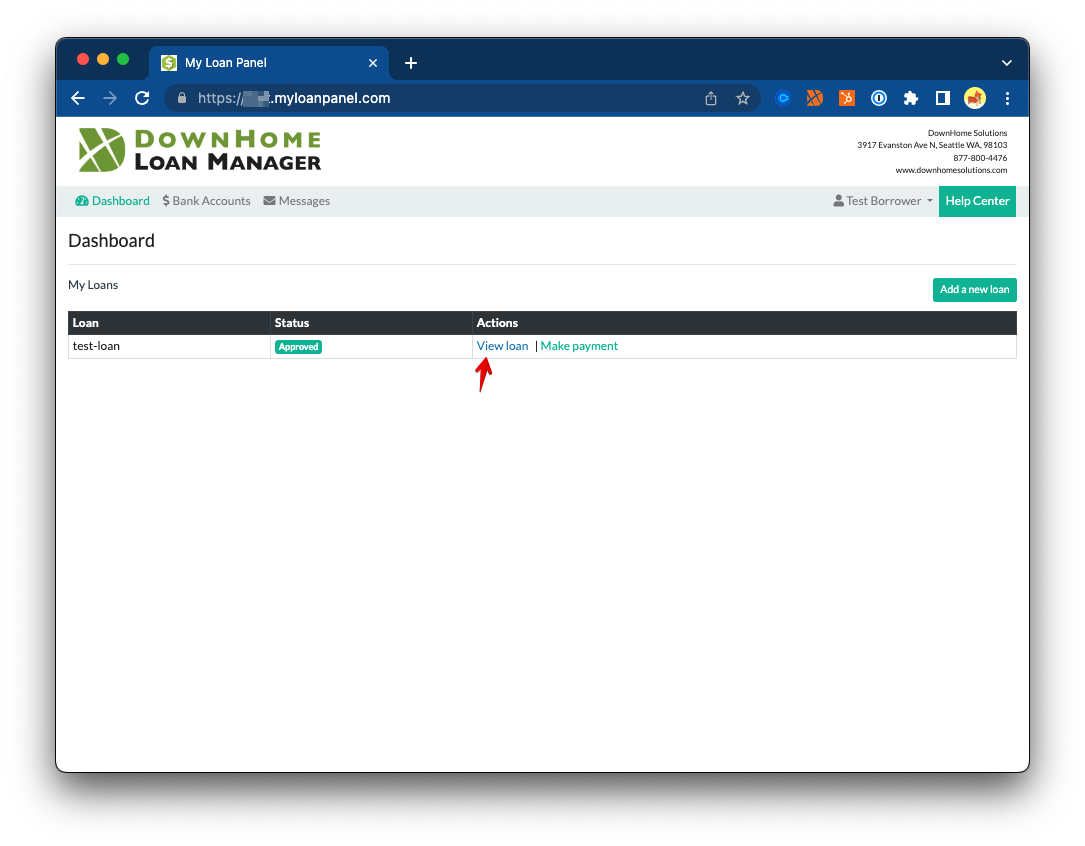
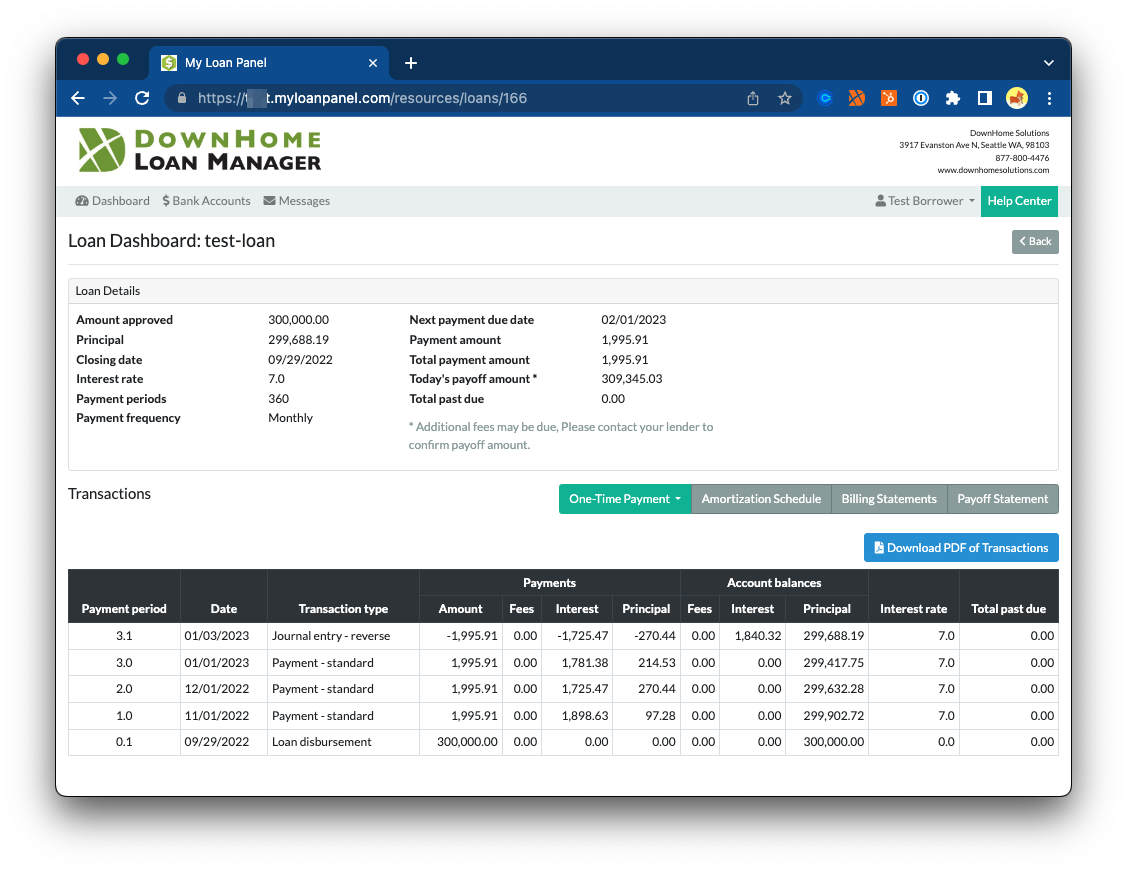
Click View loan to see transactions, billing statements, amortization schedule, and payoff statements. Note: If your lender accepts payments through the portal, you will see an option to make payments.