Online Payments: Submit a Payment
Before you start
Making online payments requires a linked bank account.
If you haven’t linked a bank account to your loan profile yet, please see our help article: Online Payments: How to Connect a Bank Account
One-Time Payment
Note: by default, online payments are limited to $5,000 per week.
To increase you daily and weekly limits, you must verify your account by following the steps in our help article: How To Make Payments Over $5,000.
- Log in to your Online Client Portal (the myloanpanel.com URL found on your billing statement or supplied by your lender).
- From the Dashboard page, click "Make payment" on your loan. If you have more than one loan, make sure to select the correct one.

- Choose the payment date (today or a date in the future), the bank account you'd like the money to come out of, and the amount.
- Accept the transaction fee if one is due
-
Click "Submit payment".
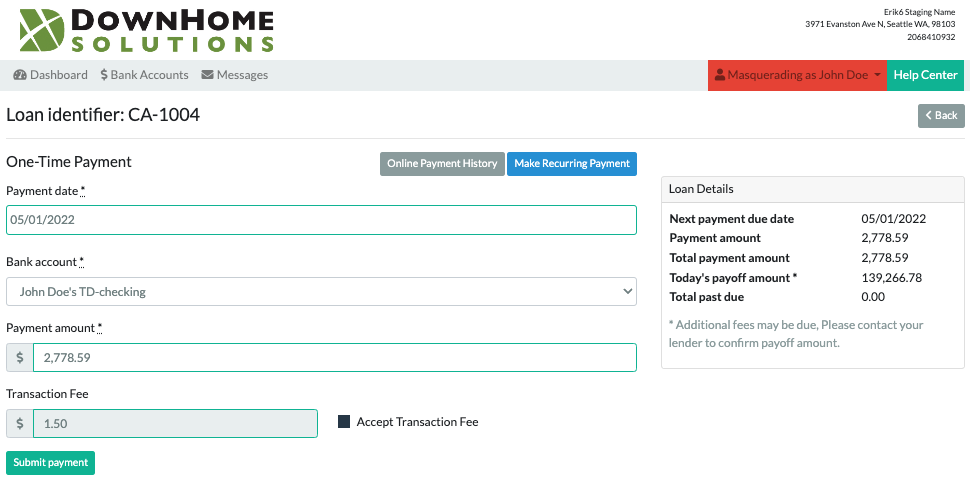
You will receive an email from info@downhomesolutions.com confirming your payment request, and another email when your payment has been accepted or declined.
Note: there is only a small window of time to cancel a payment, typically within an hour. Once your payment has started processing, there is no way to cancel.
Recurring Payment
Many lenders will allow you to schedule payments to come out of your bank account automatically on a set day each month.
- Log in to your Online Client Portal (the myloanpanel.com URL found on your billing statement or supplied by your lender)
- From the Dashboard page, click "Make Payment" on your loan. If you have more than one loan, make sure to select the correct one.
-
On the next screen, choose the “Make Recurring Payment” option. (If your lender has not enabled recurring payments, this button will not appear.)
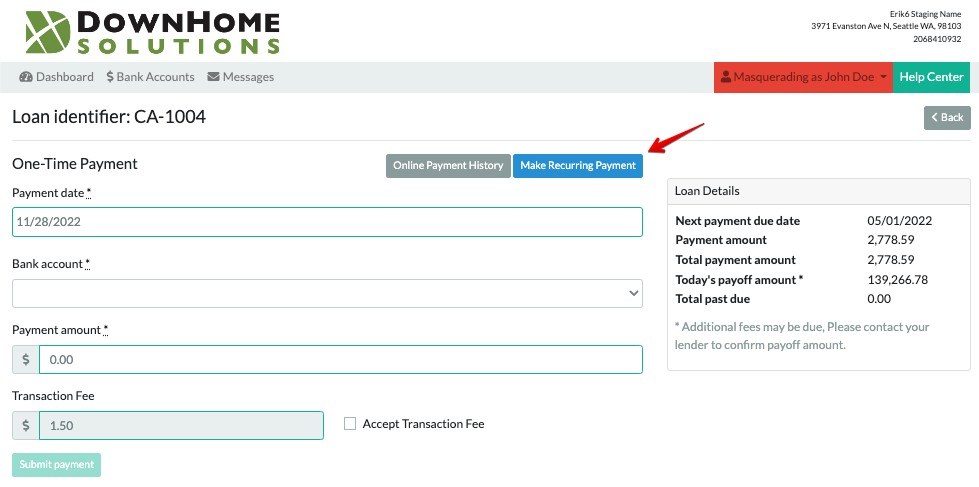
- Select a Recurring Payment Date. Options are defined by your lender. (e.g. “1st of the month”, “15th of the month”, etc.)
- Choose the bank account you'd like the money to come out of.
- Enter the amount you want withdrawn from your account each month on the date you selected above.
- Accept the transaction fee if one is due.
-
Click "Submit payment".
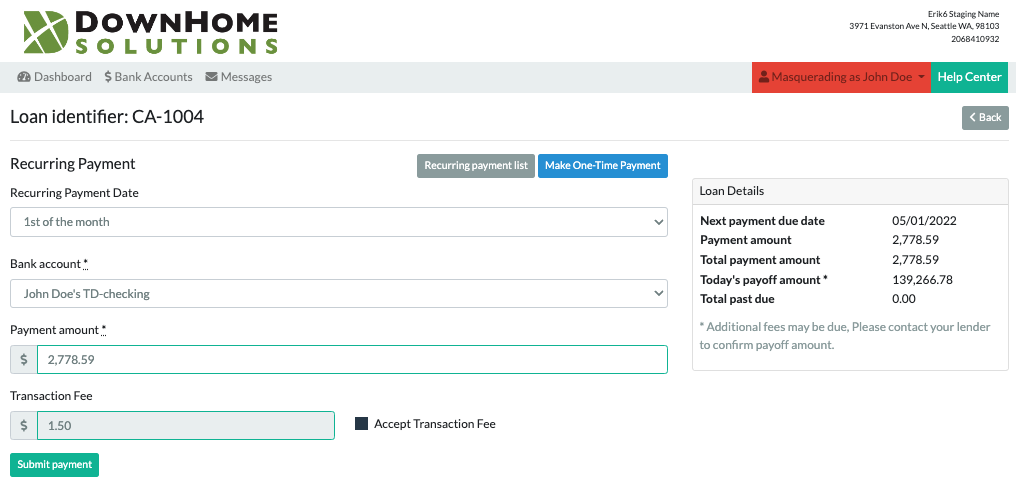
You will receive an email from info@downhomesolutions.com confirming your payment request, and another email when your payment has been accepted or declined. You will receive a reminder email 3 days before a recurring payment is drawn.
Editing or Canceling a One-Time Payment
Note: there is only a small window of time to edit or cancel a one-time payment, typically within an hour. It is not possible to make changes once your payment has started processing.
To see the status of your online payments, click "View Loan" from the Dashboard.

Click "One-Time Payment" > "Payments History".

If your payment has not been drawn yet, you may click "Edit" or "Delete" to change or cancel the payment. You can edit or delete a scheduled payment up until 4 pm CT of your requested payment processing date. Changes may not be made after that.

If you have questions about a payment, please contact your lender directly. You can find their contact information on the top of any page while logged in to your Online Portal
Editing or Canceling a Recurring Payment
To see the status of your online payments, click "View Loan" from the Dashboard.
Click "Recurring Payments" > "Recurring Payment List".

Here, you may edit, delete, or disable/enable future occurrences of a payment.
If your payment has not been drawn yet, you may click "Edit" or "Delete" to change or cancel the payment. You can edit or delete a scheduled payment up until 4 pm CT of your requested payment processing date. Changes may not be made after that.
Choosing to Disable a payment effectively pauses a recurring payment from processing until you come back to enable it again.

If you have questions about a payment, please contact your lender directly. You can find their contact information on the top of any page while logged in to your Online Portal.